Upgrade Windows 11
on older hardware
There are MANY older machines that don't technically meet the requirements to install and run Windows 11, but are quite capable of doing so. Both legally and from a hardware/performance perspective. There are also many PCs and Lapops currently running Windows 11 that won't automatically update on yearly "feature" updates, because they also don't meet the Windows 11 requirements.
But many, many people upgrade anyway, and most of them use a nifty little utility called Rufus to bypass the requirements.
Let's be clear--
If you use Rufus or another workaround to install Windows 11 on an unsupported CPU, then once installed and running it WILL get all the same security and cumulative updates as any supported device would get.
NICE!
The ONLY thing it won't get via Windows Update is the offer of the feature update to the next version of Windows. For that you have to manually upgrade using a workaround. [Feature updates are released annually, usually in Oct/Nov. Each feature release is supported with security and cumulative updates for two years.]
I prefer a clean install from boot when going from Windows 10 to 11. Upgrading to a new VERSION of Windows 11, aka a FEATURE update, is much easier and just as effective to do "In Place" from within a running Windows machine. And that is what I will describe below.
To use Rufus for a Windows 11 upgrade on unsupported hardware, follow these three steps:
- Download the Windows 11 ISO and Rufus
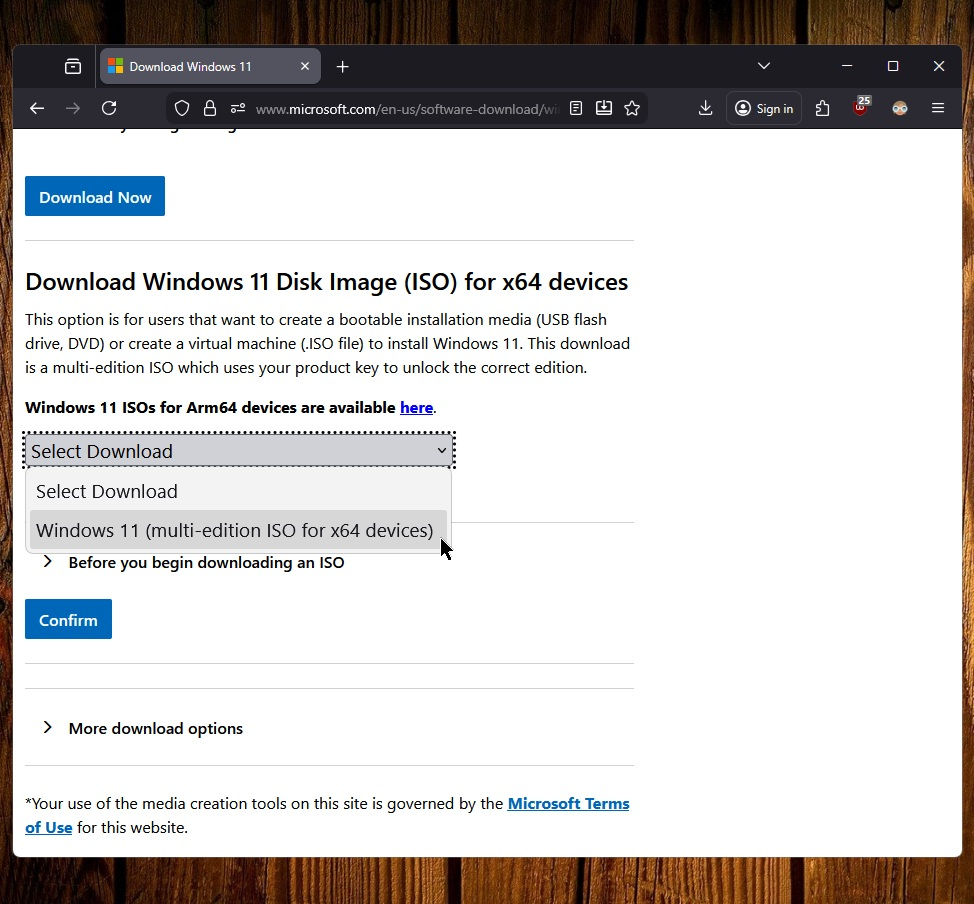
The Windows ISO is at:
https://www.microsoft.com/en-us/software-download/windows11
(scroll down to the ISO and choose the Windows 11 multi edition for x64)
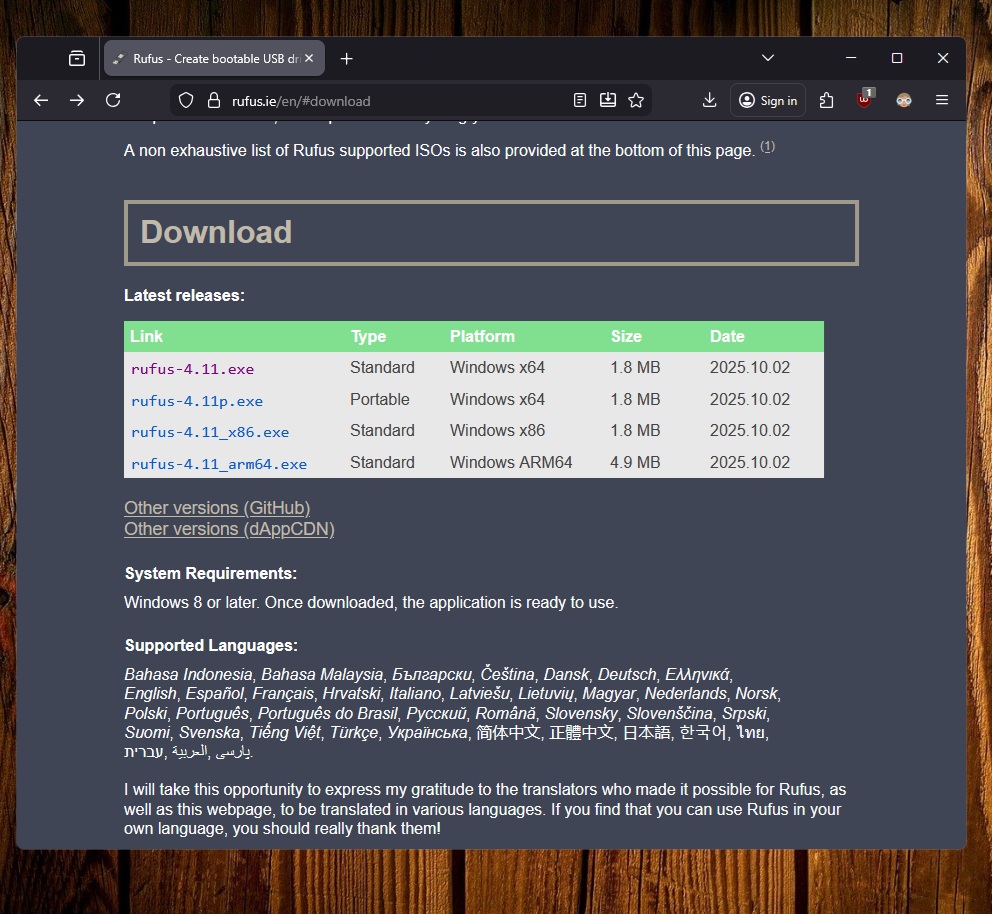
Rufus at:
https://rufus.ie/en/#download
- Run Rufus to create a bootable USB.
Next to "Boot Selection", click SELECT and browse to the Windows 11 ISO you downloaded. After that, Rufus should look like below:
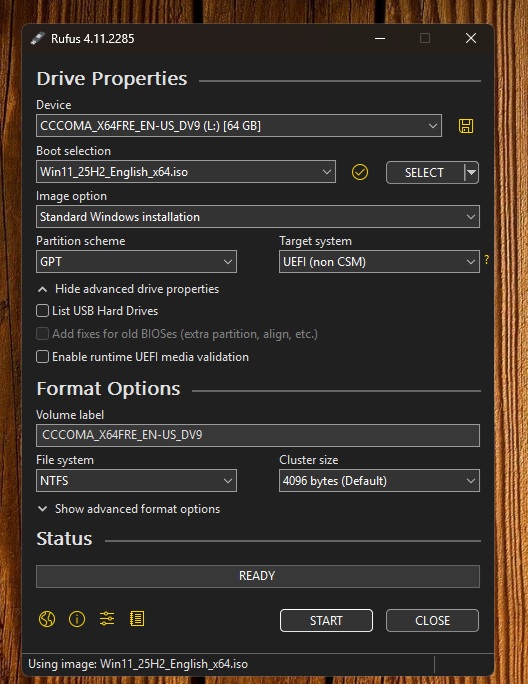
Then you can click START, and a pop-up will give you some options. Make sure to check the "Remove requirement for 4GB RAM, Secure Boot, and TPM 2.0" option in the popup.When I make a USB, the options I check are as follows:

- Then, run setup.exe from the USB drive.
This will start the in-place upgrade.
Select to keep your files and apps, which lets Windows 11 install over your current system while bypassing hardware checks.